telegone
We’ll walk you through it
A little setup.
A lot more clarity.
The desktop app is available from source today. A verified installer will be linked here when the public release is ready.
Source & setup guide01 Start with the fictional account
Try the synthetic browser demo or the desktop app’s mock mode. You can explore without connecting a Telegram account.
02 Connect your Telegram account
The app guides you through your API credentials, phone number, login code, and existing two-step password when needed. For a source build, obtain your own numeric API ID and secret API hash at Telegram’s official application page. These are application credentials, not a bot token or your password. Never share codes, passwords, or session files with support.
03 Check the account. Then the messages.
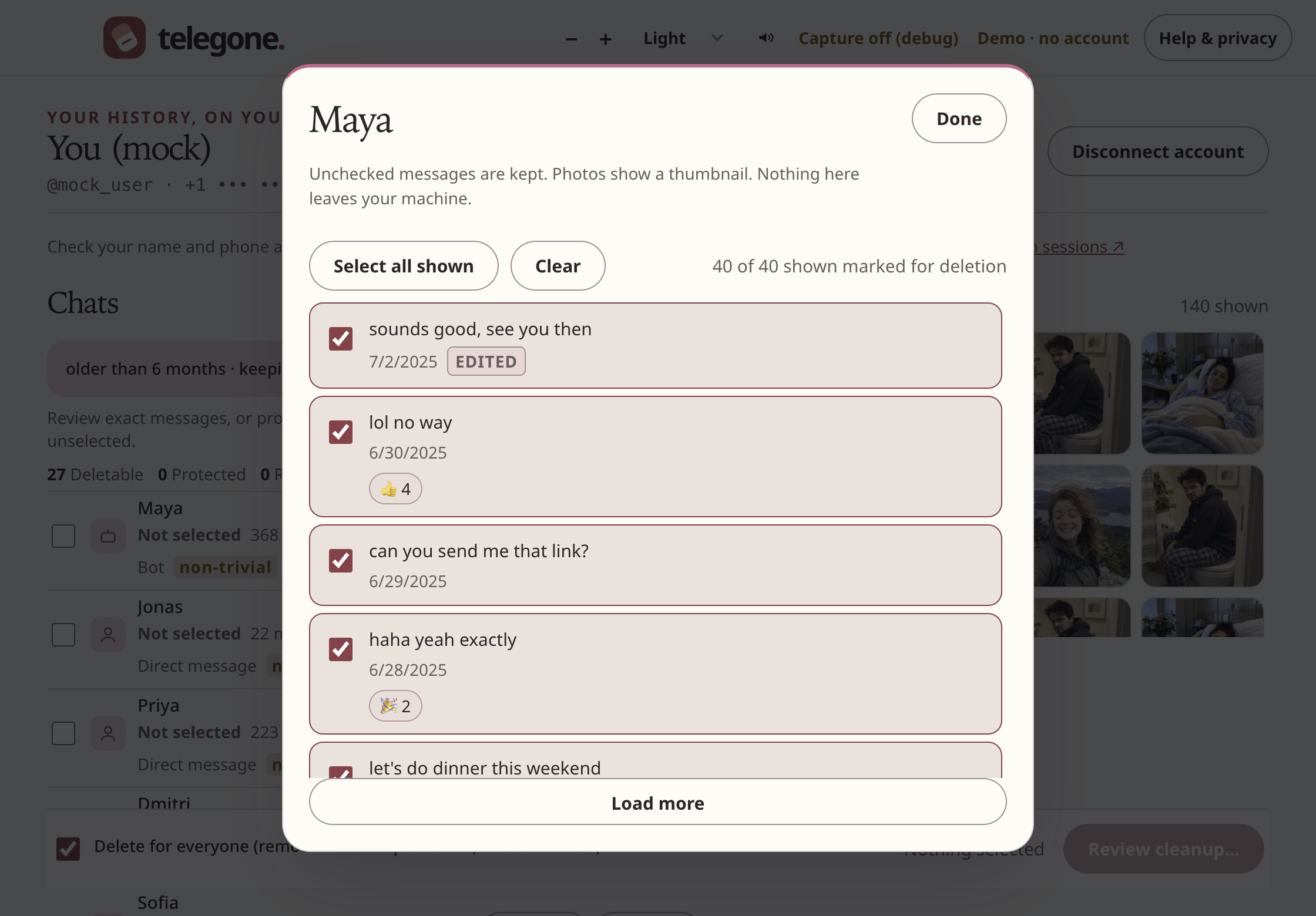
Confirm the account shown is yours. Read the digest, open photo previews, and choose a narrow cleanup. Previewing and saving a backup do not delete anything.
04 Keep a copy, or say goodbye
Choose whether to export a backup of the planned messages. A backup must finish before it can be called complete. Read the final scope before typing DELETE. There’s no undo for Telegram deletion.
The source-build path
A few practical details.
Run the fictional account first.
You’ll need Node.js and npm. In the repository’s electron/ folder, run npm ci, then npm run mock. To connect your own Telegram account, quit the demo and run npm start.
A production application sign-in option appears when the distributor has configured registered application credentials. Source builds otherwise guide you through your own API ID and hash.
The code is not your password.
Check your existing Telegram sessions for a login code; Telegram controls the permitted delivery method. A two-step password is only requested if you already enabled that protection. Never create a new Telegram password in a support conversation.
Wrong or expired code? Follow the app’s error guidance. Rate-limited? Wait for Telegram’s specified interval rather than repeatedly requesting codes.
Make sure it’s your account.
Read the connected name and username before selecting anything. Switch accounts with Sign out. If Telegram cannot confirm remote session revocation, the app tells you to review Telegram Settings → Devices.
Coming back after an interruption?
Reconnect the same account and scan again. Review the saved plan before continuing. Telegone keeps previously acknowledged work separate and does not automatically retry an uncertain request or add newly arrived messages.
Keep login codes, API hashes, passwords, backups and session files out of support messages. If you need help, share the error wording with personal details removed.
Open the full source guide ↗